01
Draw zones, or pick a template
Split, merge and resize. Snap to a 2% grid, and zones never overlap.
Draw zones once. Pin each app to its spot. Then one shortcut arranges your whole desk, on every monitor, every day.
PinLayout® is a window manager for Mac and Windows that gives every app a home on your screen, and puts it back there after every restart, every meeting and every monitor you plug in.
From the first launch, PinLayout suggests a layout for your screens. Then it keeps it in place, whatever your day does.
Four steps, done once. After that, your desk arranges itself.
Split, merge and resize. Snap to a 2% grid, and zones never overlap.
Choose which app lives in each zone, down to a single Chrome profile.
Every window lands in its zone. Or let your schedule and calendar do it.
Restarts, crashes, updates and unplugged monitors. Your layout comes back.
The features people reach for first, from snapping windows to calls that set themselves up.
One laptop, a curved ultrawide, or four monitors. Each screen keeps its own layout, and windows go home when you plug back in.
Not just snapping windows. PinLayout handles the messy parts of a working day: new monitors, calls, crashes and restarts.
Every window on this screen is a feature. Pick a group, then hover or tap any window to see what it does.
Publish a layout once and everyone imports it in one click, fitted to their own screens. It opens the same on Mac and Windows.
Layouts live on your computer unless you choose to share them. The licence is signed and checked on your device, so PinLayout keeps working without Wi-Fi.
Calm screens make focused teams. Every app in its place, so the day goes to the work, not the windows.
Yes. PinLayout places regular app windows, including browsers, editors, chat and design tools. You can even pin a single Chrome profile by matching a word in its window title.
macOS puts each full-screen app in its own Space, where no window manager can move it. PinLayout tells you when this happens; press ⌃⌘F to leave full screen and it takes over.
As many as you have. Each monitor keeps its own layout, and windows return to the monitor they were on when you plug it back in.
No. Layouts stay on your device unless you publish them to your team library or share them yourself.
Yes. PinLayout runs on both, and shared layouts open the same on either platform.
Yes. Download PinLayout for Mac or Windows and try it free. Sign in with your email to start.
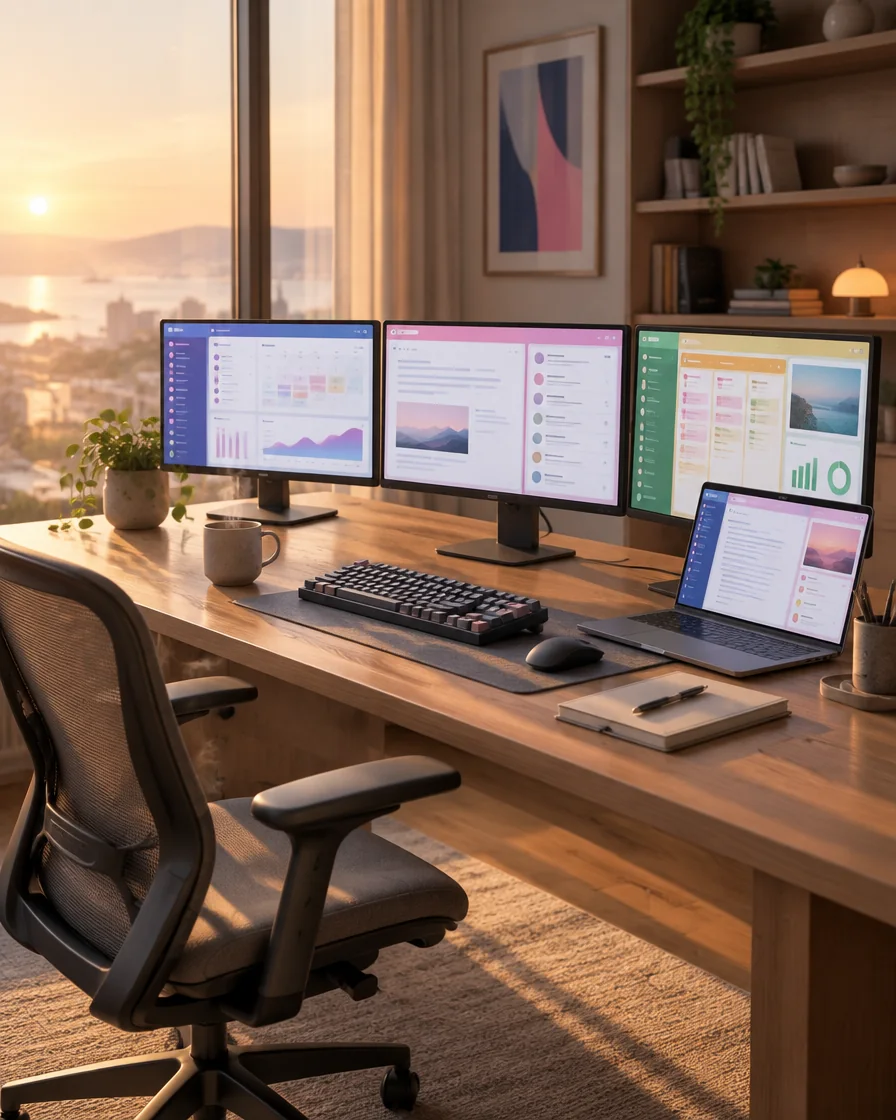
PinLayout started with a cluttered desk and a daily ritual nobody asked for.
Three monitors, a laptop, a dozen apps, and every restart, dock or meeting sent them tumbling into a pile. Ten minutes gone before the day had even begun, just dragging windows back home.
So we built the fix we always wanted: arrange your workspace once, and it stays that way, on Mac and Windows, right on your own machine, online or off. One calm, familiar desk every morning, without the busywork.
It keeps getting sharper every week, usually from something a PinLayout user asked for. Got an idea or hit a snag? Write to us at hello@pinlayout.com. A real person reads every message.
Download PinLayout and try it free. Set it up once and your desk arranges itself every day.